Explore Categories
Choose your learning path and start mastering Cyber Security.
Recent post
-
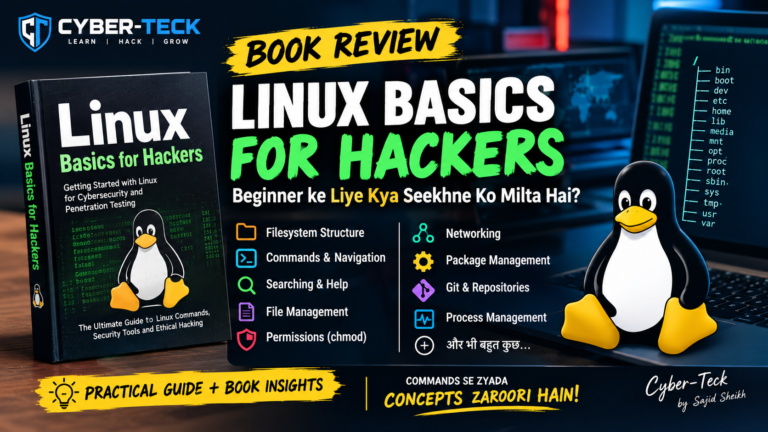
Linux Basics for Hackers: Linux Filesystem, Commands, Permissions & Process Management
Linux cybersecurity aur ethical hacking seekhne wale beginners ke liye ek important operating system hai. Penetration testing, system administration, networking aur security labs me Linux commands ka regular use hota hai. Agar aap Linux Basics for Hackers jaise cybersecurity-focused books ko follow kar rahe hain, to sabse pehle Linux ke filesystem, navigation, file management, permissions, […]
-
GPG Password Brute-Forcing & Decryption Walkthrough-john the ripper
Task Overview John the Ripper एक password-cracking tool है। आसान भाषा में समझें तो अगर हमारे पास किसी encrypted file का password नहीं है, तो John एक wordlist में मौजूद अलग-अलग passwords को एक-एक करके try करता है। GPG file के मामले में पहले gpg2john की मदद से encrypted file को ऐसे hash format में […]
-
Encryption Aur Decryption Kya Hai? (Complete Guide with GPG)
CYBER-TECK.IN | CYBER SECURITY & LINUX Encryption Aur Decryption Kya Hai? (Complete Guide with GPG) Category: Cryptography & Security | Author: Cyber-Teck Team Aaj ke digital daur mein data ki security sabse zyada important hai[cite: 2]. Chahe aapka personal password ho, bank details ho ya confidential files — data ko secure rakhne ke liye Encryption […]
-
Base64 Kya Hai? Encoding vs Encryption Aasaan Bhasha Mein Samjhein
Base64 Encoding vs Encryption – Full Explanation | Cyber-Teck Linux & Security Base64 Kya Hai? Encoding vs Encryption Aasaan Bhasha Mein Samjhein By Cyber-Teck • Linux & Hacking Basics Aaj ke is article mein hum baat karenge ki Base64 encoding kya hai, iska Linux terminal mein decoding ke liye kaise use kiya jata hai, aur […]
-
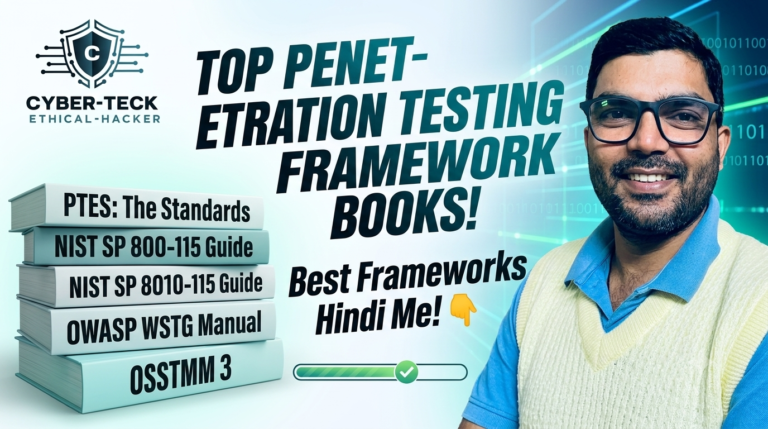
Penetration Testing Frameworks Books
📌 1. Penetration Testing Framework Kya Hai? + Cybersecurity mein penetration testing sirf vulnerabilities dhoondhne ka naam nahi hai. Ek professional penetration test ke liye ek structured methodology follow karna bahut important hota hai. Isi kaam ke liye penetration testing frameworks use kiye jaate hain. Simple words mein, penetration testing framework ek roadmap ki tarah […]
-
Offensive Security Intro in hinglish (tryhachme)
Offensive Security Intro ko simple Hinglish mein samjhein. Learn ethical hacking, penetration testing, cybersecurity basics, attacker mindset aur security fundamentals with TryHackMe.
-
Bug Bounty Playbook V2 Review & Web Exploitation Guide
Bug Bounty Playbook V2 Review & Web Exploitation Guide Bug bounty hunting aur web application penetration testing sikhne ke liye ek structured roadmap ka hona bohot zaroori hai. Alex Thomas (Ghostlulz) dwara likhi gayi “Easy Wins Bug Bounty Playbook V2” web application security ke exploitation phase ko samajhne ke liye ek mashhoor handbook hai. Aaj […]
-
Bug Bounty Bootcamp Review & Web Security Guide
Bug Bounty Bootcamp Review & Web Security Guide Web security aur application penetration testing sikhne ke liye Vickie Li dwara likhi gayi book “Bug Bounty Bootcamp: The Guide to Finding and Reporting Web Vulnerabilities” (No Starch Press) ek sabse comprehensive aur practical resource mani jaati hai. Aaj ke is article mein hum baat karenge ki […]
-
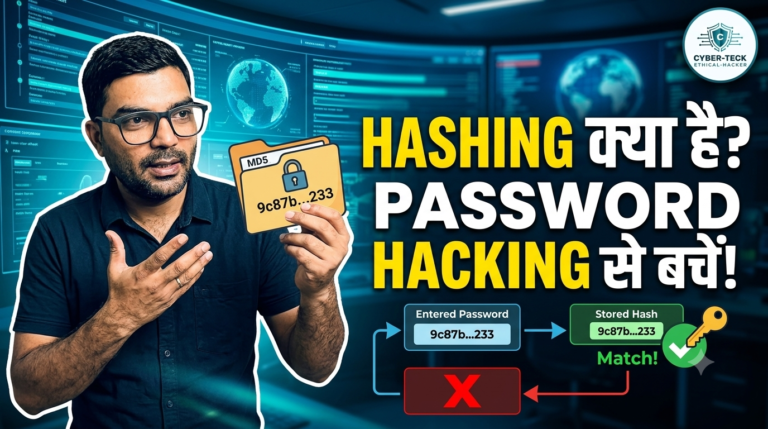
Hashing Kya Hai? | Hashing in Cyber Security | MD5, SHA-256 & John the Ripper
Hashing Kya Hai? Linux & Cyber Security Mein Hashing Ko Samjhein – Cyber-Teck Cyber Security & Ethical Hacking Guide Hashing Kya Hai? | Hashing in Cyber Security | MD5, SHA-256 & John the Ripper Hashing cybersecurity और Linux security में एक बहुत important concept है। अगर आप Cyber Security, Ethical Hacking, Penetration Testing या Linux […]
-
Hashing क्या है? Linux में Hashing और Hash Cracking Explained
Hashing क्या है? Linux में Hashing और Hash Cracking Explained – Cyber-Teck.in Hashing क्या है? Linux में Hashing और Hash Cracking Explained Cyber Security और Linux Security सीखते समय Hashing एक बहुत important concept है। खासकर जब आप password security, file integrity, password cracking और tools जैसे John the Ripper के बारे में सीख रहे […]
-
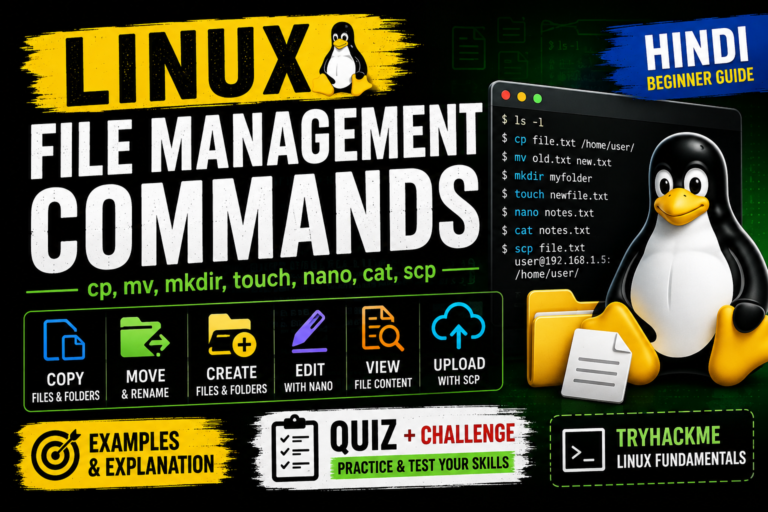
Linux File Management Commands Explained (cp, mv, scp) | Hindi
CYBER-TECK.IN Linux File Management Commands Explained A Complete Guide for Beginners, System Admins, and Ethical Hackers Linux me files aur folders ko manage karna ek basic aur bahut important skill hai. Chahe aap system administrator ho, ethical hacker ho, ya TryHackMe jaise platforms par practice kar rahe ho, file management commands ka knowledge zaroori hai. […]
-
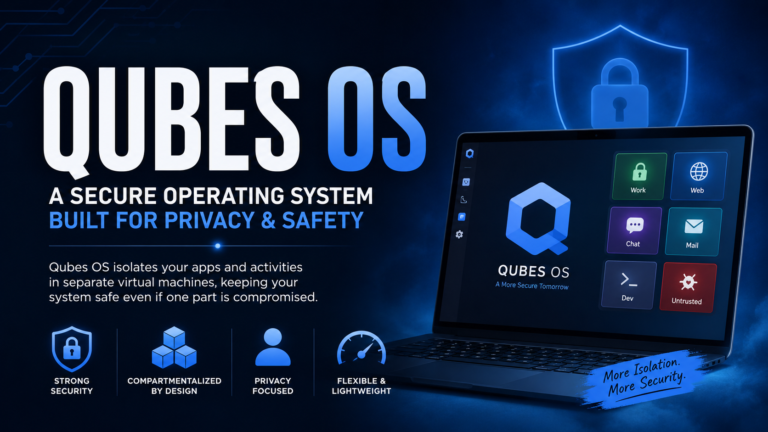
What is Qubes OS?
Qubes OS is a free and open-source, security-oriented operating system for single-user desktop computing. Qubes OS leverages Xen-based virtualization to allow for the creation and management of isolated compartments called qubes. These qubes, which are implemented as virtual machines (VMs), have specific: Note See our Glossary and Frequently asked questions (FAQ) for more information. Features Strong isolation Isolate different pieces of software as […]
-
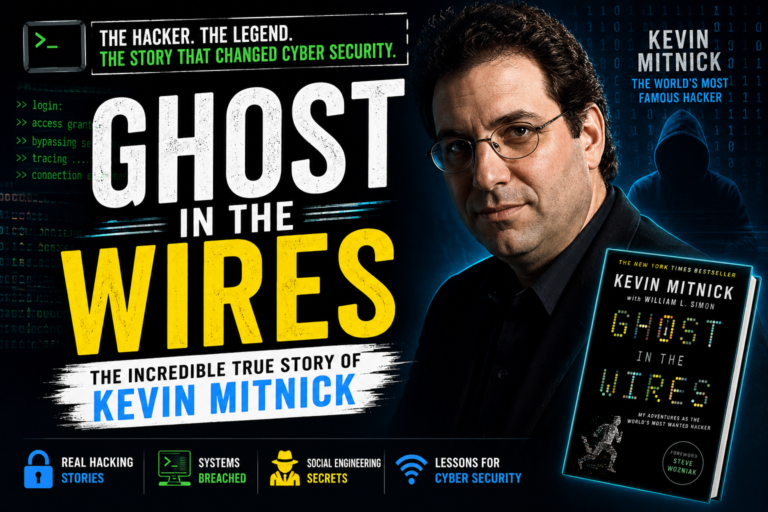
Ghost-in-the-wires-kevin-mitnick
Kevin David Mitnick (August 6, 1963 – July 16, 2023) was an American computer security consultant, author, and convicted hacker. In 1995, he was arrested for various computer and communications-related crimes, and spent five years in prison after being convicted of fraud and illegally intercepting communications.[6] Mitnick’s pursuit, arrest, trial and sentence were all controversial, as were the associated media […]
-
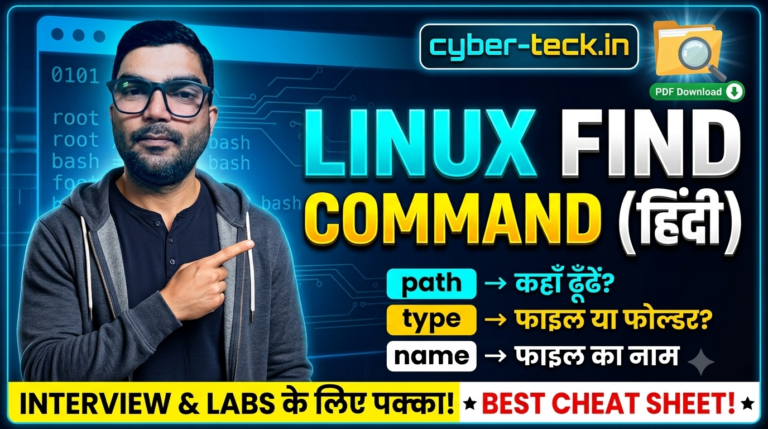
Linux Find Command Cheat Sheet
Learn the Linux Find Command in Hindi with syntax, practical examples, and advanced options. Search files and directories easily in Kali Linux, Ubuntu, and other Linux systems. The Linux Find Command is one of the most powerful commands used to search for files and directories in Linux. In this guide, you’ll learn the find command […]
-
How to Install Burp Suite Professional on Windows (2026) | Free Download & Complete Installation Guide
Learn how to install Burp Suite Professional on Windows with this step-by-step guide. Download files included, complete setup, troubleshooting, and beginner-friendly instructions. https://drive.google.com/drive/folders/1oi69RzMQYRYI6KXnqhvZenGkPIIXySqb?usp=sharing In this tutorial, you’ll learn how to install Burp Suite Professional on Windows from start to finish. This guide includes the required download files, installation steps, Java setup, and common troubleshooting tips […]
-
Sed – stream editor, Linux modules TryHackMe
Learn the Sed (Stream Editor) command in Linux with this complete TryHackMe walkthrough. Understand text editing, pattern replacement, filtering, and practical sed examples for beginners. Linux modules TryHackMe Sed – stream editor sed (Stream Editor) ek command-line tool hai jo text ko line by line read karta hai aur us par operation karta hai. Iska […]
-
Linux Privilege Escalation Enumeration – Complete Beginner Guide | TryHackMe Walkthrough
Learn Linux Privilege Escalation Enumeration with this complete TryHackMe walkthrough. Discover essential Linux enumeration commands, privilege escalation techniques, and practical examples for beginners. Linux Privilege Escalation Enumeration – Complete Beginner Guide | TryHackMe Walkthrough Linux Privilege Escalation Enumeration – Complete Beginner Guide | TryHackMe Walkthrough Ethical hacking aur penetration testing mein jab aapko kisi Linux […]
-
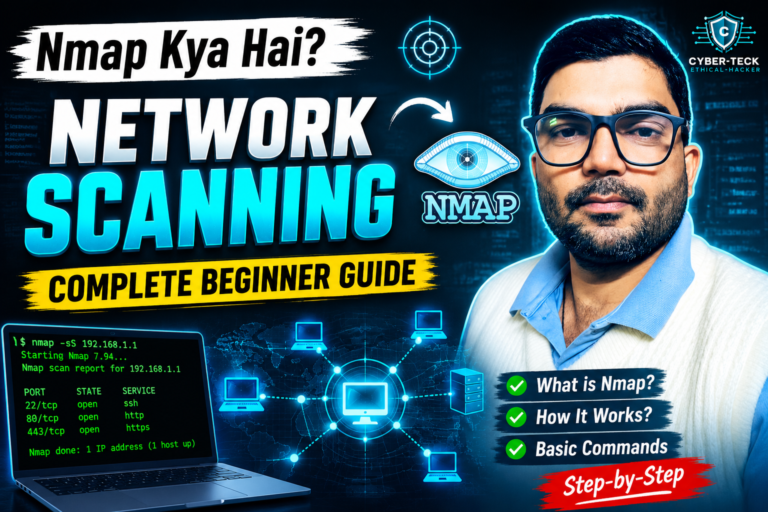
Nmap Kya Hai? Network Scanning Ka Complete Beginner Guide
Jab hum kisi network se connected hote hain aur internet, email ya web services use karte hain, tab do important questions saamne aate hain: Example ke liye, kisi system par SSH server chal raha ho sakta hai aur kisi dusre system par Web Server. In sab information ko efficiently collect karne ke liye Cyber Security […]
-
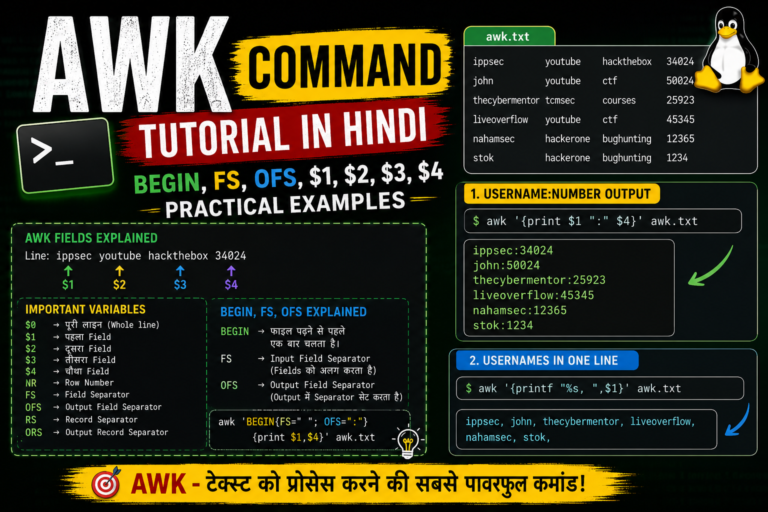
AWK Command Tutorial in Hindi | BEGIN, FS, OFS Explained with Examples
AWK Kya Hai? (Complete Beginner Guide) cyber-teck.in AWK Kya Hai? (Complete Beginner Guide) Category: Linux, DevOps & Cyber Security | Written by Admin AWK Linux/Unix ka ek powerful text processing aur pattern scanning tool hai. Iska use text files ko search, filter, format, analyze aur report generate karne ke liye kiya jata hai. Command line […]
-
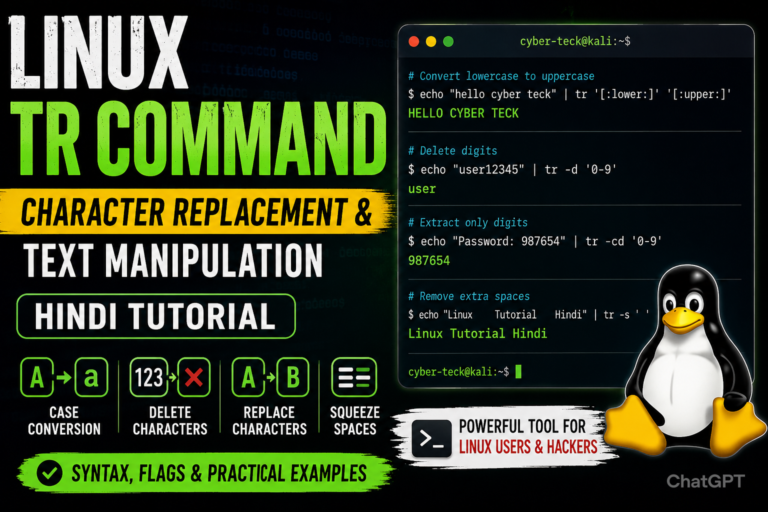
Linux tr Command in Hindi – Character Replacement और String Manipulation Guide
Linux में कई ऐसे commands मौजूद हैं जो text processing को आसान बनाते हैं। उन्हीं में से एक powerful command है tr (Translate Command)। यह command characters को replace करने, delete करने, uppercase या lowercase में convert करने और strings को manipulate करने के लिए उपयोग की जाती है। यदि आप Linux Administration, Ethical Hacking, […]
-
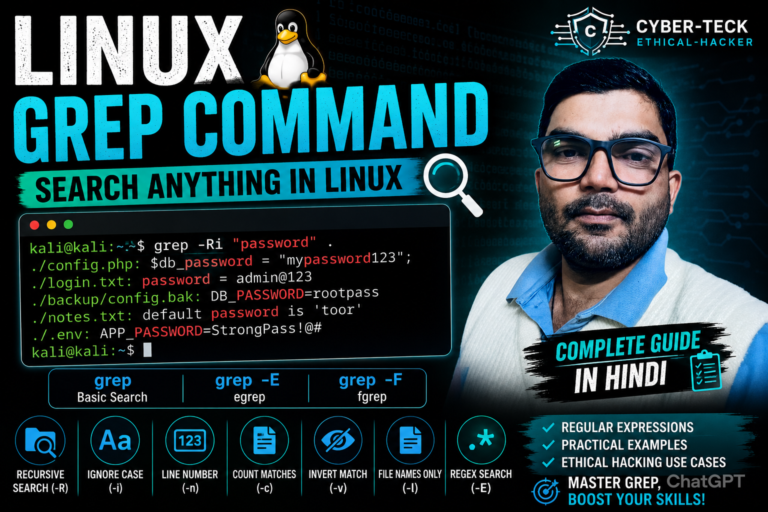
Linux Grep Command Tutorial in Hindi – Complete Guide for Beginners & Ethical Hackers
Introduction Linux में जब हमें हजारों लाइनों के डेटा में से किसी विशेष शब्द, पैटर्न या जानकारी को खोजना होता है, तब grep (Global Regular Expression Print) कमांड का उपयोग किया जाता है। Grep Linux के सबसे शक्तिशाली कमांड्स में से एक है और यह Ethical Hackers, Cyber Security Professionals, System Administrators और Developers द्वारा […]
-
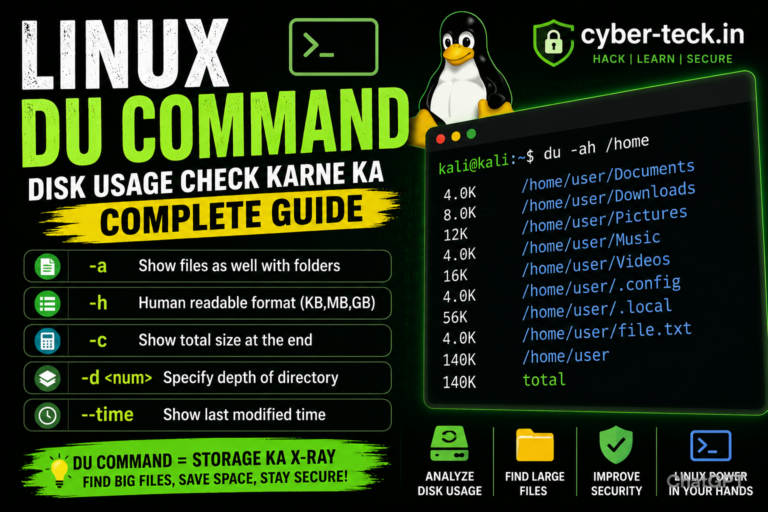
Linux DU Command Explained – Disk Usage Check Karne Ka Complete Guide
Introduction Linux में जब हमें यह पता लगाना होता है कि कौन-सी फाइल या डायरेक्टरी सबसे ज्यादा डिस्क स्पेस इस्तेमाल कर रही है, तब du (Disk Usage) कमांड का उपयोग किया जाता है। यह सिस्टम एडमिनिस्ट्रेटर, एथिकल हैकर्स और Linux यूजर्स के लिए एक बहुत ही महत्वपूर्ण कमांड है। DU कमांड की मदद से आप […]
-
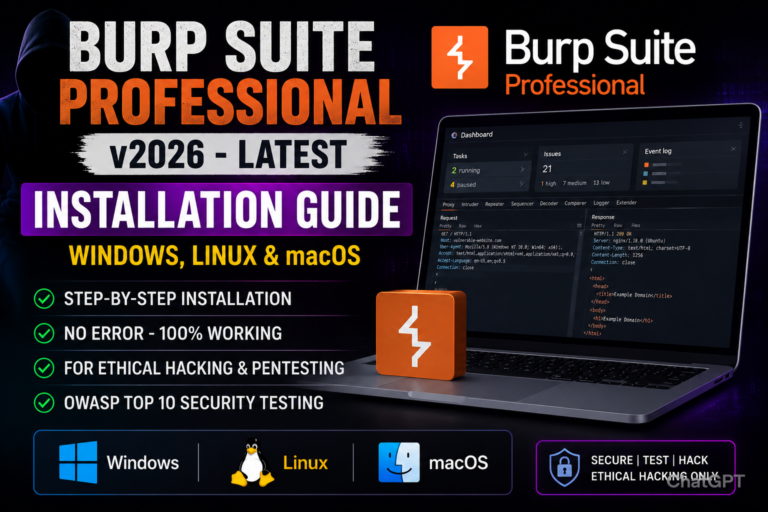
Burp Suite Professional v2026 Installation Guide (Windows, Linux & macOS)
Introduction Burp Suite Professional दुनिया के सबसे लोकप्रिय Web Application Security Testing Tools में से एक है। यह Security Researchers, Ethical Hackers, Penetration Testers और Bug Bounty Hunters द्वारा व्यापक रूप से उपयोग किया जाता है। Burp Suite Professional आपको OWASP Top 10 Vulnerabilities, Authentication Flaws, Business Logic Issues और अन्य आधुनिक Web Security Risks […]
-
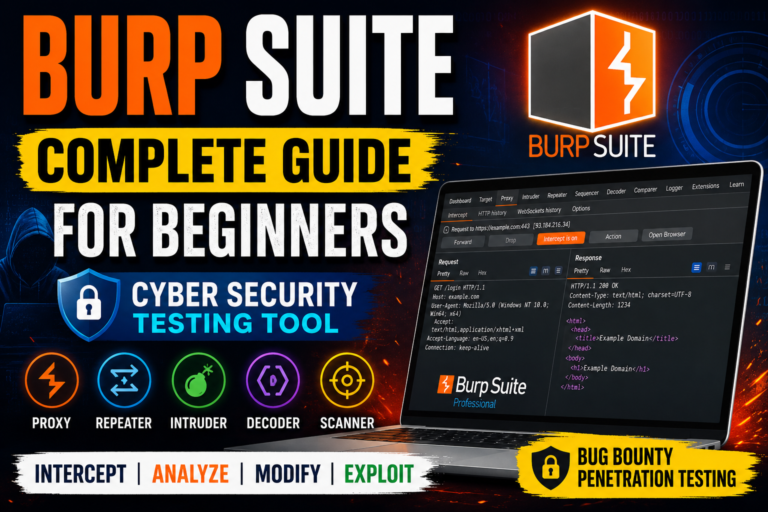
Burp Suite Complete Guide For Beginners – Cyber Security Testing Tool
Burp Suite, Burp Suite Guide, Burp Suite Tutorial, Burp Suite for Beginners, Burp Suite Community Edition, Burp Suite Professional, Web Application Security, Web Security Testing, Ethical Hacking, Cyber Security, Penetration Testing, OWASP, Bug Bounty, Kali Linux, Proxy, Repeater, Intruder, Scanner, Decoder, Comparer, HTTP Requests, Web Pentesting, Security Testing, Vulnerability Assessment, Web Hacking, TryHackMe, PortSwigger, Cyber-Teck, […]
-
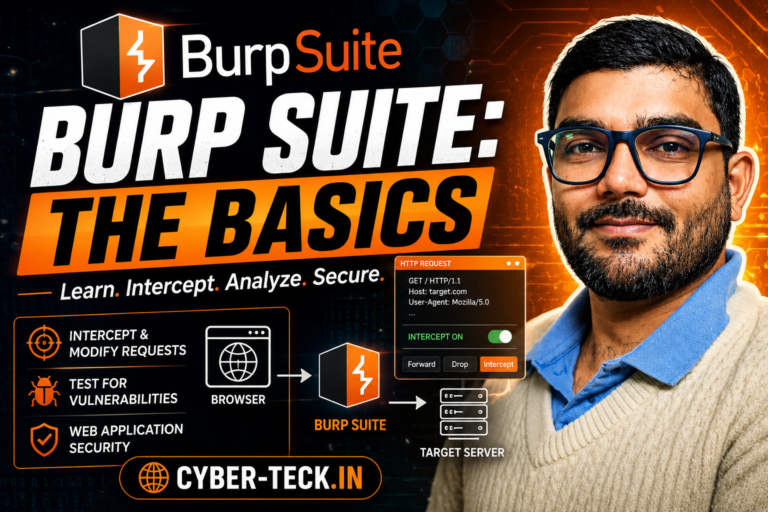
Burp Suite: The Basics
Cybersecurity & Hacking Burp Suite Basics: Web Application Pentesting Guide (Hindi Me) Burp Proxy, Installation, Configuration aur Real-World XSS Bypass Seekhein Step-by-Step Hey Guys! Agar aap Ethical Hacking ya Web Application Penetration Testing seekh rahe hain, toh ek aisa tool hai jiske bina aapka kaam bilkul nahi chal sakta — aur uss tool ka naam […]
-
Python Dictionaries Kya Hai? Complete Beginners Guide in Hindi, chapter-6
Python me Dictionary kya hai aur data key-value pairs me kaise store hota hai? Alien game example aur nesting structures ke saath seekhein bilkul aasan Hindi me. Python Course Python Dictionaries Kya Hai? Complete Beginners Guide with Visual Layouts Real-World Objects ko Python Code me Model Karna Seekhein — Step-by-Step Hindi Me Hey Guys! Agar […]
-
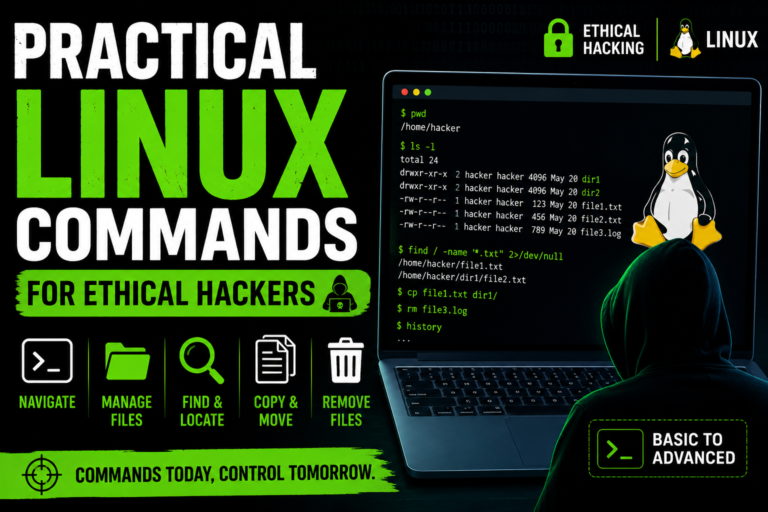
Practical Linux Commands for Ethical Hackers
Question -1 Part 1: File System Structure & Navigation • Explore root directory using:pwdls /ls -l / • Navigate into /etc, /var, /home and verify using pwd • List contents of:/bin/boot/dev/proc/tmp • Practice absolute path navigation:cd /var/log • Practice relative path navigation:cd logcd .. • Use navigation commands:cd ~cd –cd ..cd . Take screenshots of […]
-
Working with Lists in Python – Chapter 4
Python Crash Course Series Python में Lists सीखने के बाद अगला सबसे important concept आता है — Working with Lists।इस chapter में हम सीखेंगे: 1. Looping Through an Entire List जब हमें list के हर item पर same task करना हो, तब हम for loop का use करते हैं। Example magicians = [‘alice’, ‘david’, ‘carolina’] […]
-
Python ,If Statements ,Chapter 5 ,Explained in Hindi | Beginner Friendly Tutorial | Cyber-Teck
Python में If Statement क्या होता है? Programming में कई बार हमें किसी condition (शर्त) को check करना पड़ता है। अगर condition सही हो तो एक काम करना है और गलत हो तो दूसरा काम करना है। इसी काम के लिए Python में if statement का उपयोग किया जाता है। If Statements Python का if […]
-
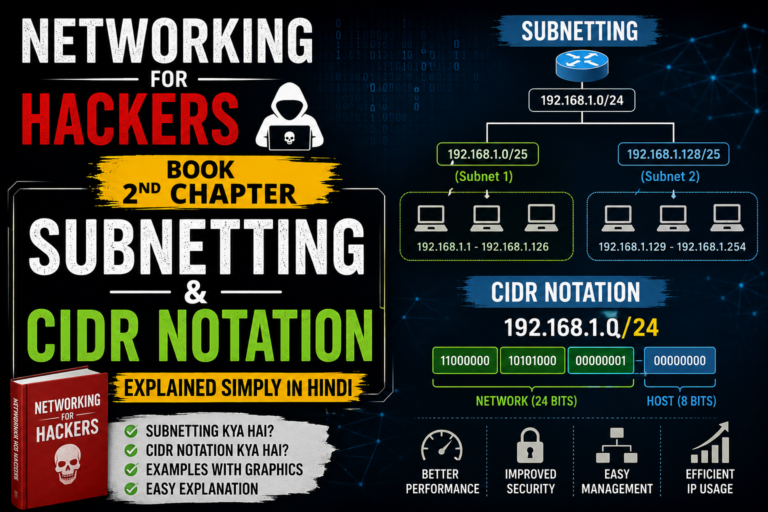
Subnetting and CIDR Notation | Networking for Hackers Book 2nd Chapter
Subnetting Kya Hota Hai? Subnetting ka matlab hota hai:👉 Ek bade network ko chhote-chhote networks me divide karna. Jaise: Isse: 6 CIDR Notation Kya Hai? CIDR ka full form hai: Classless Inter-Domain Routing Ye batata hai:👉 IP address ka kitna part Network hai aur kitna Host hai. Example: 192.168.1.0/24 192.168.1.0/24 192.168.1.0/24 Yaha: Matlab: Easy Example […]
-
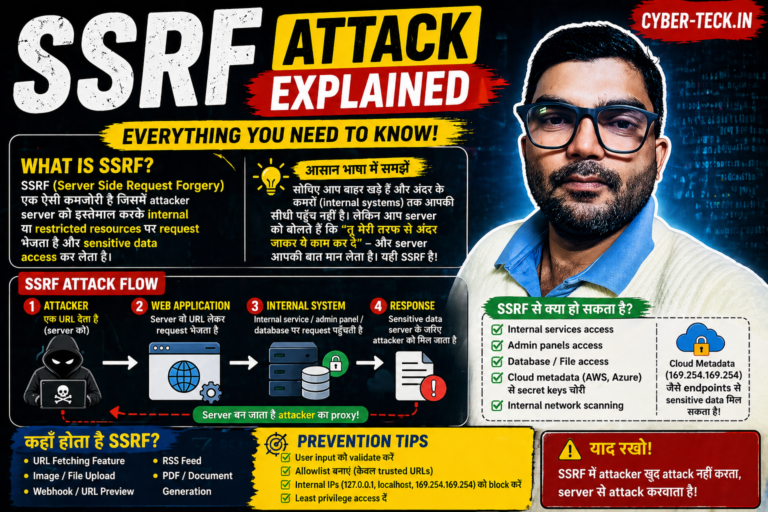
SSRF (Server Side Request Forgery) – Picture ke sath easy explanation
SSRF क्या है? 👉 SSRF = Server Side Request Forgery 👉 मतलब: Attacker server को बोलता है कि “तू मेरी तरफ से किसी दूसरी जगह request भेज” 🧠 Simple Example तुम normally क्या करते हो? 👉 लेकिन SSRF में क्या होता है? ❌ Attacker खुद request नहीं भेजता✅ वो server से request भेजवाता है 💡 […]
-
Windows में FoxyProxy + Burp Suite CA Certificate Setup (Step-by-Step Guide with Images)
Introduction Agar aap ethical hacking / bug bounty / web security testing seekh rahe ho, to Burp Suite ek powerful tool hai. Lekin HTTPS traffic intercept karne ke liye aapko FoxyProxy aur CA Certificate setup karna zaroori hota hai. Is guide me hum step-by-step images ke saath setup seekhenge. 🧩 Step 1: FoxyProxy Extension Install […]
-
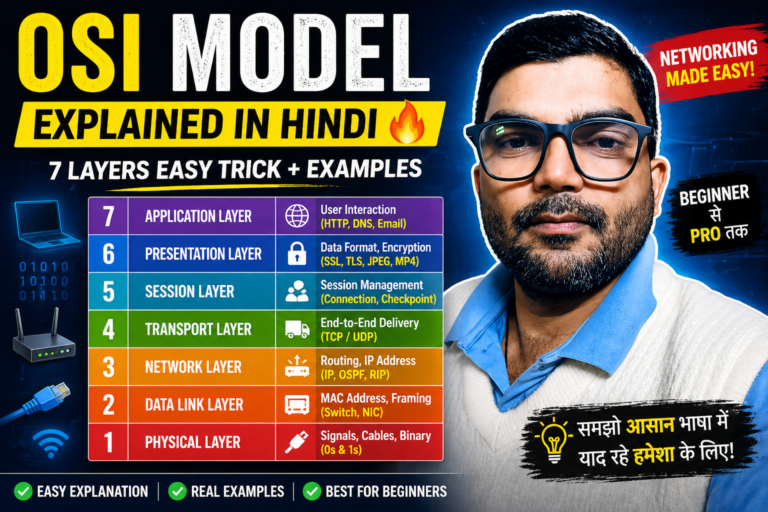
OSI Model Explained in Hindi (Beginner to Pro Guide)
🔰 Introduction OSI Model (Open Systems Interconnection Model) networking ka ek standard framework hai jo batata hai ki data ek device se dusre device tak kaise send, receive aur interpret hota hai. 👉 Simple language me:OSI Model = Data travel ka step-by-step system 🖼️ OSI Model Diagram 6 📦 Encapsulation kya hota hai? Jab data […]
-
Burp Suite Installation (Mac M1/M2/M3/M4 + Kali Linux) & FoxyProxy Setup Guide
Introduction Agar aap Cyber Security ya Ethical Hacking start kar rahe ho, to Burp Suite Community Edition ek must-have tool hai 🔥Is guide me hum dekhenge: ✔ MacBook (Apple Silicon) me install✔ Kali Linux me install (agar pre-installed na ho)✔ FoxyProxy setup (with images) 🍎 Burp Suite Install in Mac (M1 / M2 / M3 […]
-
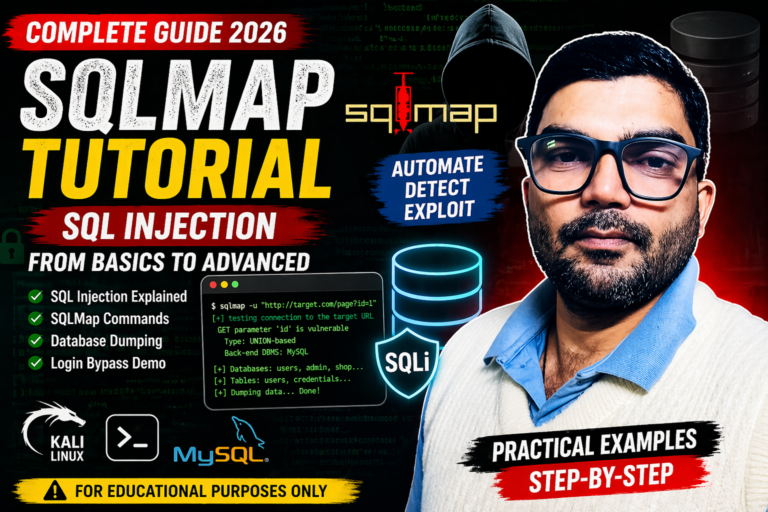
SQLMap Basics – SQL Injection Attack Ka Complete Guide (Beginner to Advanced)
Introduction Cyber Security में SQL Injection एक बहुत ही dangerous vulnerability है। Hackers इसी technique का use करके database से sensitive data निकाल सकते हैं। इस ब्लॉग में हम समझेंगे: 📊 Database क्या होता है? Database एक structured system होता है जहाँ data store, modify और retrieve किया जाता है। 👉 Example:जब आप किसी website […]
-
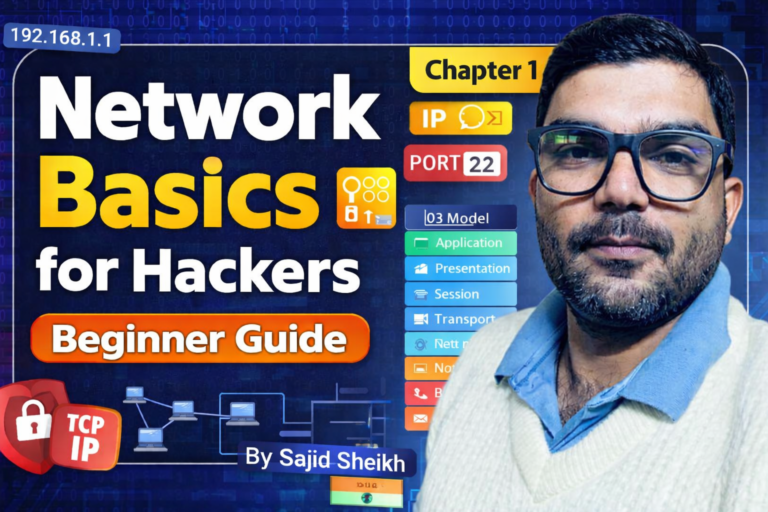
Network Basics for Hackers (Beginner Guide)
Cyber Security शुरू करने से पहले ये ज़रूरी क्यों है? अगर आप Ethical Hacking या Cyber Security सीखना चाहते हैं, तो सबसे पहले आपको Networking Basics समझना होगा।बिना networking के knowledge के hacking सीखना वैसा ही है जैसे बिना map के रास्ता ढूंढना। इस article में हम simple language में समझेंगे:👉 IP Address क्या होता […]
-
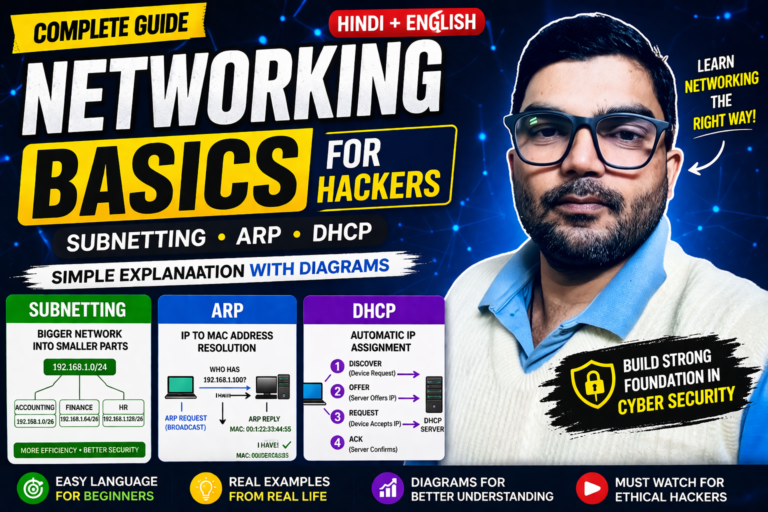
Networking Basics for Hackers – Subnetting, ARP & DHCP Explained (Hindi)
7 🔥 Introduction Agar aap Cyber Security ya Ethical Hacking start kar rahe ho, to networking samajhna bahut zaroori hai. Network chhota bhi ho sakta hai (home WiFi) aur bada bhi (company network).Isi ko manage karne ke liye use hota hai: 👉 Subnetting + ARP + DHCP Aaj hum ye sab simple Hinglish me samjhenge […]
-
Linux Basic for hacker book
📘 Linux Basic for Hackers – Read Online Free Linux Beginner Book for Ethical Hacking 🔥 if you want buy this book from amazon –https://amzn.to/3QqqqOf Linux Basics for Hackers: Linux Filesystem, Commands, Permissions & Process Management and reviw Linux cybersecurity aur ethical hacking seekhne wale beginners ke liye ek important operating system hai. Penetration testing, […]
-
Python book
npython book free read and downloads in google drive 📘 python Book (Free) ✔ Beginner Friendly✔ Hindi + English✔ Practice Examples if want to buy this book from amazon –https://amzn.to/4tWtHna
-
What is Networking? (Hindi + English Guide for Beginners)
What is Computer Networking? Complete Beginner’s Guide (Hindi + English) Aaj ke digital daur mein chahe aap Instagram par reels dekh rahe ho, kisi ko WhatsApp par message bhej rahe ho, ya TryHackMe par cybersecurity ki practice kar rahe ho—ye sabhi cheezein Computer Networking ki wajah se possible hain. Agar aap Cybersecurity, Ethical Hacking, ya […]
-
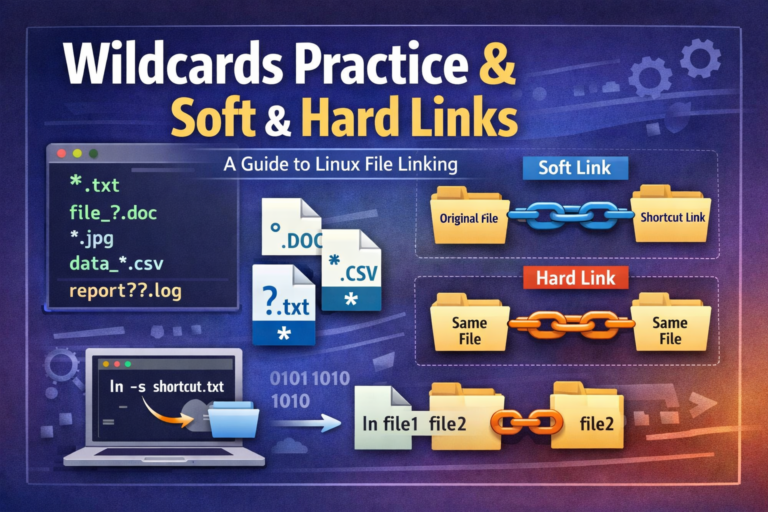
Linux Wildcards and File Links (Soft vs Hard Links) Explained with Practical Examples
Agar aap Kali Linux, Ethical Hacking, ya System Administration sikh rahe hain, toh Wildcards aur File Links do aise core concepts hain jo aapke daily command-line workflows ko 10x fast aur efficient bana dete hain. Iss step-by-step guide mein hum samjhenge ki Linux Wildcards ka sahi istemaal kaise karein aur Soft Links (Symbolic Links) vs […]
-
What is cybersecurity
What is cybersecurity all about? Cybersecurity is the practice of protecting systems, networks, and programs from digital attacks. These cyberattacks are usually aimed at accessing, changing, or destroying sensitive information; extorting money from users through ransomware; or interrupting normal business processes. Implementing effective cybersecurity measures is particularly challenging today because there are more devices than people, and attackers […]
-
AirDroid app se girlfriend ka mobile control Kaise Kare (Hindi 2026) 📱💻
AirDroid Parental Control ✅ 1. Location Tracking Real-time location dekh sakte ho Location history bhi milti hai ✅ 2. Screen Mirroring Child ka mobile screen live dekh sakte ho Wo kya kar raha hai, check kar sakte ho ✅ 3. App Monitoring Kaunse apps use ho rahe hain Screen time control ✅ 4. Calls […]
-
python new course, ” introduction of list-3 “, Python Basic Notes (Beginner), hindi
Introducing Lists in Python | Python Tutorial for Beginners In this lesson, we learn about Lists in Python.A list is used to store multiple values in a single variable. cars=[“maruti”,”bmw”,”nissan””toyata”] 0 1 2 3 -4 -3 -2 -1 Example of a List: cars = [“maruti”, “bmw”, “nissan”, “toyota”] Index Position: […]
-
python new course, ” variable-2″, Python Basic Notes (Beginner), hindi
Python Basic Notes (Beginner) 1. Data Types in Python Integer Whole numbers को Integer कहते हैं। print(7) Output 7 Float Decimal numbers को Float कहते हैं। print(7.5) Output 7.5 String Text को String कहते हैं। Python में string को ” “ , ‘ ‘ या ”’ ”’ में लिखा जा सकता है। print(“hello world”) […]
-
Linux CLI-tryhackme -🐧 Linux Basic Commands
Linux CLI-tryhackme -🐧 Linux Basic Commands Agar aap Linux ya Ethical Hacking start kar rahe ho, to ye basic commands aapko zarur aani chahiye. Ye commands aapko system navigate karne aur files manage karne me help karti hain. 📌 Important Linux Commands 📍 1. Current Location Check (PWD) 👉 Command: me help karti hain. pwd […]
-
Linux CLI-tryhackme -Linux Basic Commands
Linux CLI & TryHackMe Lab Walkthrough Linux Terminal se efficient interaction ke liye basic navigation aur system profiling commands par pakad honi zaruri hai. Chahe aap Cyber Security me SOC Analyst ban rahe ho ya Linux System Administrator—ye fundamental commands daily operations ka base hain. Is guide me hum Linux CLI Basic Commands ke saath-saath […]
-
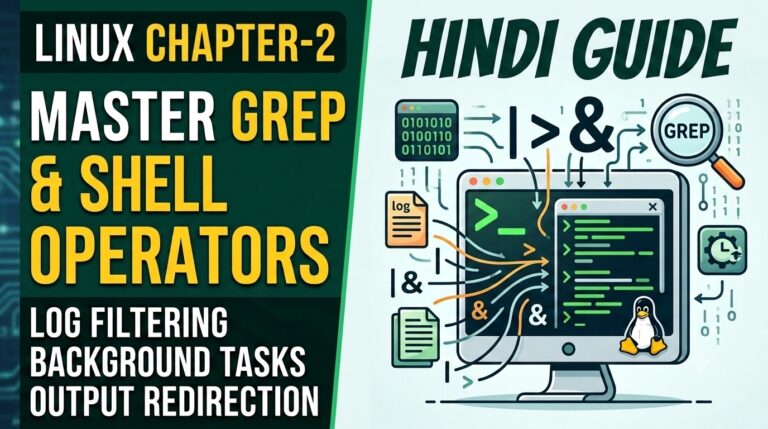
Using Grep,An Introduction to Shell Operators
Linux Commands Chapter 2: Text Searching with Grep & Master Shell Operators Linux Administration aur Cybersecurity (SOC Analysis, Incident Response) me text files, config files, aur log files se kaam ki information nikalna sabse zaroori skill hai. Is guide me hum seekhenge ki grep command ki madad se kisi bhi file se targeted data kaise […]
-
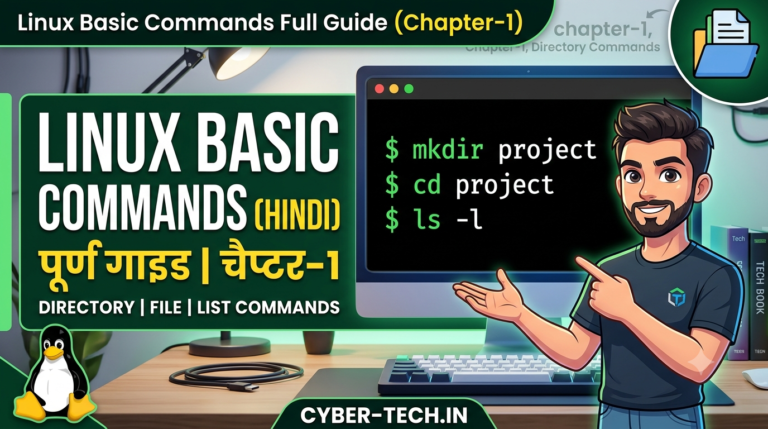
Linux Commands Chapter 1: Essential Terminal Commands (Beginner to Pro Guide)
Linux Terminal se darna chhodie! Chahe aap System Administration, Ethical Hacking, ya Cloud Engineering seekh rahe ho—Linux CLI (Command Line Interface) hi aapka sabse bada hathyar hai. Is Chapter-1 me hum Linux ke sabse fundamental aur daily use hone wale commands ko practically samjhenge. 1. Directory Navigation (Folder me Aage-Piche Ghumna) System me aap kis […]
-
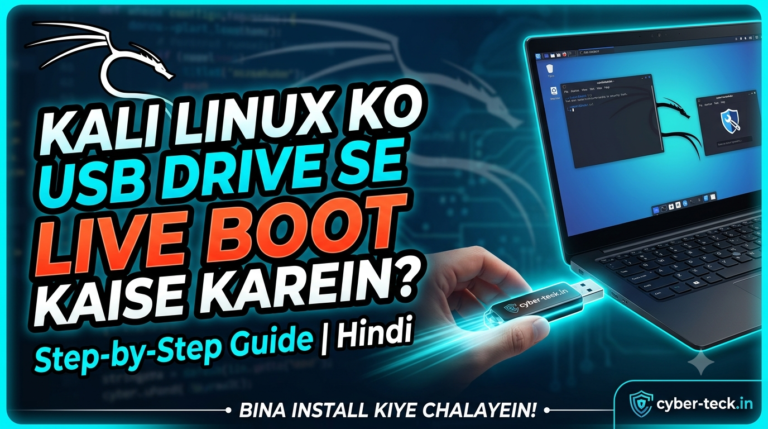
Kali Linux Ko USB Drive Se Live Boot Kaise Karein: Complete Step-by-Step
Kali Linux ek powerful Linux distribution hai jise penetration testing, ethical hacking, aur security research ke liye duniya bhar mein istemal kiya jata hai. Agar aap apne primary Operating System (Windows/macOS) ko bina disturb kiye ya permanently install kiye Kali Linux ko explore karna chahte hain, to Live Boot USB sabse best aur safe tariqa […]











comming soon-
pre-security path in trahackme
and