
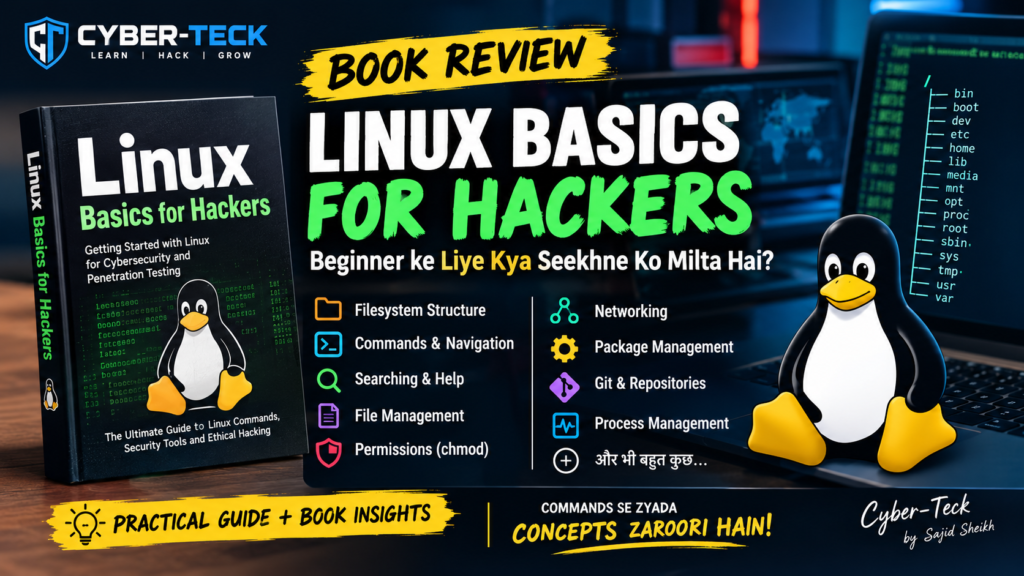
Linux cybersecurity aur ethical hacking seekhne wale beginners ke liye ek important operating system hai. Penetration testing, system administration, networking aur security labs me Linux commands ka regular use hota hai.
Agar aap Linux Basics for Hackers jaise cybersecurity-focused books ko follow kar rahe hain, to sabse pehle Linux ke filesystem, navigation, file management, permissions, networking aur process management ko samajhna useful hai.
Is guide me hum Linux ke kuch important basics ko practical commands ke saath step-by-step samjhenge.
Note: Ye guide learning aur authorized cybersecurity labs ke purpose ke liye hai. Kisi system par commands chalane se pehle ensure karein ki aapke paas permission hai.
1. Linux Filesystem Structure
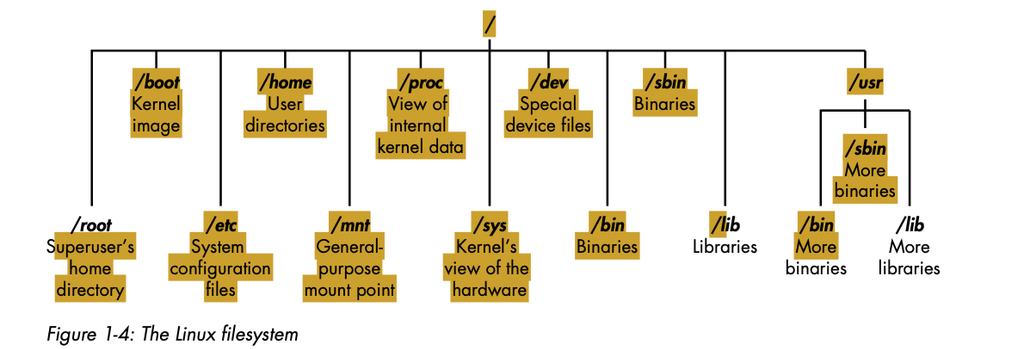
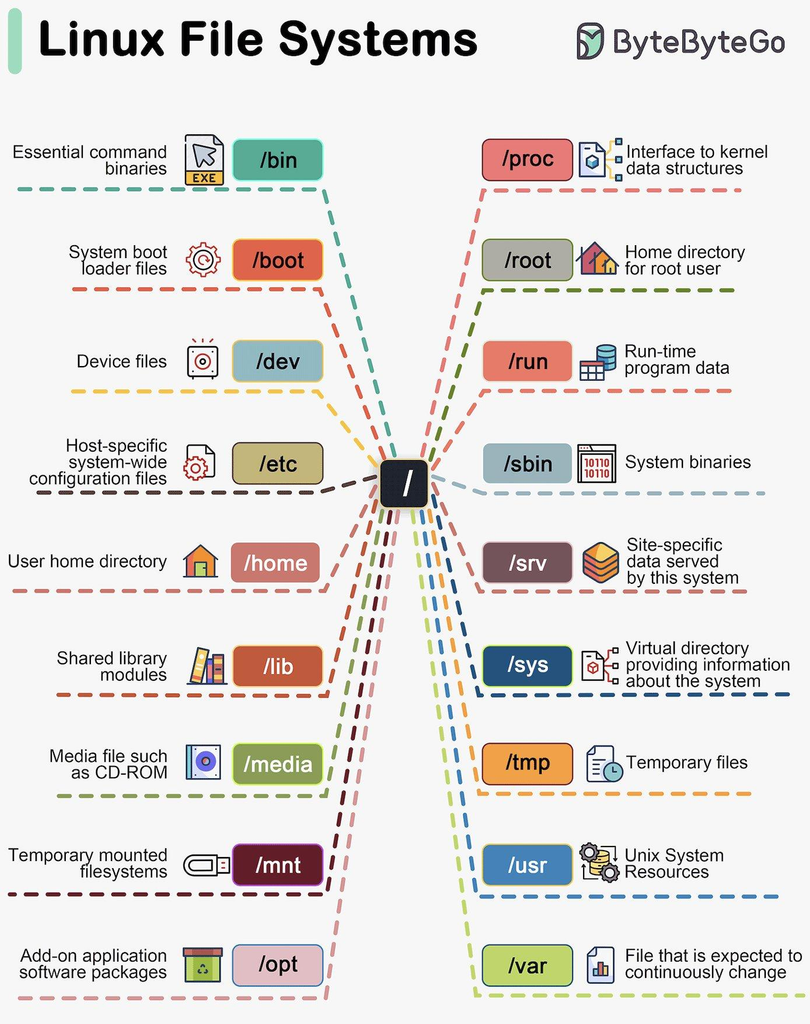
Linux me filesystem ka starting point / hota hai. Isse Root Directory kaha jata hai.
Windows me hum C:\ jaise drive structure dekhte hain, lekin Linux me directories ek tree structure me / ke andar organized hoti hain.
Important Linux Directories
| Directory | Purpose |
|---|---|
/ | Root directory — poora Linux filesystem yahin se start hota hai. |
/root | Superuser/root account ki home directory. |
/home | Regular users ki personal home directories. |
/etc | System configuration files aur configuration settings. |
/bin | Important user commands aur executable programs. |
/sbin | System administration ke important commands. |
/usr/bin | User applications aur commands. |
/usr/sbin | Additional system administration commands. |
/lib | System libraries jo programs ko required functionality provide karti hain. |
/mnt | Temporary mounting ke liye commonly used directory. |
/media | USB, CD/DVD jaise removable media ko mount karne ke liye commonly used location. |
/proc | Running processes aur kernel information ka virtual filesystem. |
/sys | Kernel aur hardware-related information provide karta hai. |
/boot | Linux kernel aur boot-related files. |
/dev | Devices ko represent karne wali special files. |
/proc aur /sys ko samajhna
/proc aur /sys normal directories jaise nahi hain. Ye virtual filesystems hain.
Inke through system ke processes, kernel aur hardware ke baare me information dekhi ja sakti hai.
Example:
ls /procAur:
ls /sysCybersecurity learning me in directories ko samajhna useful hai kyunki Linux system ke internal behavior ko understand karne me ye help karti hain.
2. Basic Linux Navigation Commands
Linux terminal me kaam karte waqt sabse pehle hume ye pata hona chahiye ki hum currently kis directory me hain.
pwd — Current Location
pwdpwd ka meaning hai Print Working Directory.
Example output:
/home/sajidIska matlab hai ki current working directory /home/sajid hai.
whoami — Current User
whoamiYe command batati hai ki current terminal me kaunsa user logged in hai.
Example:
sajidAgar output root aaye, to current session root user ke privileges ke saath chal raha hai.
cd — Directory Change Karna
Kisi directory me jane ke liye cd command use hoti hai.
cd /etcIsse /etc directory me chale jayenge.
Ek level back jane ke liye:
cd ..Do levels back jane ke liye:
cd ../..Home directory me wapas jane ke liye:
cd ~3. Directory List Karna — ls
Current directory ke andar files aur directories dekhne ke liye:
lsDetailed information ke liye:
ls -lHidden files ke saath complete listing:
ls -laLinux me hidden files generally . se start hoti hain.
Example:
.config
.bashrc
4. Linux Commands ki Help Kaise Lein?
Linux me har command ko yaad karna zaroori nahi hai. Sabse important skill ye hai ki jab command ya option yaad na ho, to uski documentation kaise dekhein.
--help
Kai commands --help option provide karti hain.
Example:
aircrack-ng --helpIsse command ke available options ka overview mil sakta hai.
General format:
<command> --helpman — Manual Pages
Detailed documentation ke liye man command use hoti hai.
man aircrack-ngExample:
man lsManual page se command ka purpose, options aur usage samajhne me help milti hai.
Cybersecurity learner ke liye documentation padhna ek important skill hai.
5. Files aur Commands Search Karna
Linux me different situations ke liye multiple search commands available hain.
locate
locate filenamelocate indexed database ka use karke files ko quickly search kar sakta hai.
which
which aircrack-ngwhich normally batata hai ki executable command system ke PATH me kis location par available hai.
Example:
/usr/bin/aircrack-ngwhereis
whereis aircrack-ngwhereis command binary, source aur manual page jaise related locations search kar sakti hai.
find
Detailed filesystem search ke liye:
find / -type f -name "filename"Example:
find / -type f -name "apache2"find powerful command hai aur large filesystem me search karne ke liye useful hai.
6. Linux Files Create aur Read Karna
touch
Empty file create karne ke liye:
touch newfileExample:
touch notes.txtcat — File Read Karna
cat notes.txtYe file ka content terminal me display karta hai.
cat >
Nayi file create karke usme text enter kar sakte hain:
cat > file.txtText enter karne ke baad Ctrl + D press karke input end kiya ja sakta hai.
cat >>
Existing file ke end me additional text add karne ke liye:
cat >> file.txtYe existing content ko overwrite karne ke bajay new content append karta hai.
7. Directory aur File Management
mkdir
New directory create karne ke liye:
mkdir newdircp
File copy karne ke liye:
cp file1 /path/Example:
cp notes.txt /home/sajid/Documents/mv
File ko rename ya move karne ke liye:
mv oldname newnameExample:
mv test.txt notes.txtrm
File delete karne ke liye:
rm file.txtImportant: rm se delete ki gayi file normally recycle bin me nahi jaati.
rmdir
Empty directory delete karne ke liye:
rmdir empty_dirrm -r
Directory aur uske andar ke contents ko recursively delete kar sakta hai:
rm -r foldernameIs command ko carefully use karein, especially / ya important system directories ke saath.
8. Text Files ko Read Karne ke Commands
Large files ko read karne ke liye poori file ek saath display karna practical nahi hota.
head
File ki beginning ki lines dekhne ke liye:
head -n 10 file.txtYe first 10 lines display karega.
tail
File ki last 10 lines:
tail -n 10 file.txtLogs ko monitor karne me tail particularly useful ho sakta hai.
nl
Line numbers ke saath content:
nl file.txtmore aur less
Large files ko page-by-page read karne ke liye:
more file.txtya:
less file.txtless large text files aur logs inspect karne ke liye commonly useful hai.
9. grep — Specific Text Search Karna
grep Linux ka bahut useful text-searching tool hai.
Example:
ps aux | grep apache2Yahan:
ps auxprocesses ki information provide karta hai.|output ko next command tak bhejta hai.grep apache2sirf relevant text ko filter karta hai.
Configuration file me specific word search karne ka example:
grep output /etc/snort/snort.confIsse file me output word wali matching lines search ki ja sakti hain.
Pipe | kya karta hai?
Linux me pipe:
|ek command ke output ko doosri command ke input ke roop me use karne deta hai.
Ye concept Linux command-line workflow ka important part hai.
10. Network Management — ifconfig aur dhclient
Linux me network interfaces ko inspect aur configure karne ke liye different tools available hain.
Traditional command:
ifconfigYe network interfaces aur unki information display kar sakti hai.
Note: Modern Linux distributions me
ipcommand koifconfigke alternative ke roop me commonly use kiya jata hai.
Example:
ip addrStatic IP Example
Traditional ifconfig syntax:
ifconfig eth0 192.168.1.115Subnet mask aur broadcast ke saath:
ifconfig eth0 192.168.1.115 netmask 255.255.0.0 broadcast 192.168.1.255Actual interface name aapke system par eth0, ens33, enp0s3 etc. ho sakta hai.
Isliye pehle interface check karna useful hai:
ip addrMAC Address Change Example
Linux lab environment me network interface ki MAC address temporarily change karne ke traditional commands:
ifconfig eth0 down
ifconfig eth0 hw ether 00:11:22:33:44:55
ifconfig eth0 up
Ye command sirf apne authorized lab/system par testing ke liye use karein.
DHCP se IP Request
dhclient eth0Ye DHCP server se IP configuration request karne ke liye use ho sakta hai.
Modern systems me NetworkManager ya ip/distribution-specific networking tools bhi commonly used hote hain.
/etc/hosts
Local hostname-to-IP mappings ke liye:
/etc/hostsfile important hai.
Example:
192.168.1.10 testserverIs type ki entry se local system hostname ko specified IP address se associate kar sakta hai.
11. Package Management — APT
Debian-based Linux distributions, jaise Kali Linux aur Debian/Ubuntu, me APT package management ke liye commonly use hota hai.
Package Search
apt-cache search <keyword>Example:
apt-cache search nmapPackage Install
apt-get install <packagename>Example:
sudo apt-get install nmapPackage Remove
sudo apt-get remove <packagename>Package aur Configuration Purge
sudo apt-get purge <packagename>Repository Information Update
sudo apt-get updateYe configured repositories se latest package information retrieve karta hai.
Installed Packages Upgrade
sudo apt-get upgradeSystem administration ke context me update aur upgrade ka difference samajhna important hai:
update → package information refresh
upgrade → available package updates install
12. Git Repository Clone Karna
Cybersecurity tools aur open-source projects ke source code repositories commonly Git par hosted hote hain.
Repository clone karne ke liye:
git clone <URL>Example:
git clone https://example.com/project.gitClone karne ke baad project ki files local machine par aa jati hain.
Important: Unknown repositories se code execute karne se pehle source aur contents ko verify karein.
13. Linux File Permissions
Linux security ka ek fundamental concept hai file permissions.
Linux permissions mainly teen categories ke liye define hoti hain:
- Owner (u) — file ka owner
- Group (g) — associated group
- Others (o) — baaki users
Basic permissions:
r= Readw= Writex= Execute
Permission Values
| Permission | Binary | Octal |
|---|---|---|
--- | 000 | 0 |
--x | 001 | 1 |
-w- | 010 | 2 |
-wx | 011 | 3 |
r-- | 100 | 4 |
r-x | 101 | 5 |
rw- | 110 | 6 |
rwx | 111 | 7 |
Isliye:
r = 4
w = 2
x = 1
Permission Example
Agar permission hai:
rwxto value hogi:
4 + 2 + 1 = 7Agar:
rw-to:
4 + 2 = 6Agar:
r-xto:
4 + 1 = 514. chmod — Permissions Change Karna
Example:
chmod 777 fileIska matlab Owner, Group aur Others ko rwx permissions dena.
Lekin 777 ko unnecessarily use karna security risk ho sakta hai, kyunki ye sabhi users ko broad permissions deta hai.
Specific permission remove karne ka example:
chmod u-w fileYahan:
u= Owner-w= Write permission remove
Permissions check karne ke liye:
ls -lExample:
-rw-r--r-- 1 sajid users 1200 notes.txtIs output ke beginning me permission information दिखाई देती है.
15. Linux Process Management
Linux me running programs ko processes kaha jata hai.
Har running process ka ek PID (Process ID) hota hai.
ps
Current user’s processes dekhne ke liye:
psps aux
System ke running processes ka detailed view:
ps auxtop
Real-time process aur system resource monitoring ke liye:
toptop me CPU usage, memory usage aur running processes jaise information continuously update hoti rehti hai.
16. Process Priority — nice aur renice
Linux me processes ki scheduling priority ko influence karne ke liye nice aur renice commands use ki ja sakti hain.
New process ke liye:
nice -n 10 <program>Existing process ke liye:
renice 19 <PID>Nice value ka concept samajhne ke liye important point:
Higher nice value generally lower scheduling priority ko indicate karti hai.
Negative nice values higher priority ke liye use hoti hain aur inke liye elevated privileges ki zarurat ho sakti hai.
17. Process Terminate Karna — kill
Kisi process ko terminate karne ke liye:
kill <PID>Forceful termination ke liye:
kill -9 <PID>-9 SIGKILL signal use karta hai, jo process ko immediately terminate karne ke liye hota hai.
Isliye kill -9 ko default option ke roop me use karne ke bajay pehle normal termination try karna generally better hota hai:
kill <PID>Linux Basics for Hackers — Ye Commands Cybersecurity Me Kyon Important Hain?
Linux ko sirf commands ka collection samajhna enough nahi hai. Cybersecurity me important skill hai system ko samajhna.
Aapko gradually ye concepts comfortable hone chahiye:
- Linux filesystem ka structure
- Terminal navigation
- Files aur directories manage karna
- Search commands use karna
- Text filtering with
grep - Network interfaces samajhna
- Packages install aur manage karna
- Git repositories use karna
- File permissions samajhna
- Running processes monitor karna
In concepts ko samajhne ke baad aap cybersecurity labs aur penetration-testing environments me Linux commands ko zyada confidently use kar sakte hain.
Linux Basics for Hackers Book Review — Beginner ke Liye Kya Seekhne Ko Milta Hai?
Linux Basics for Hackers type cybersecurity-focused Linux books ka main benefit ye hai ki Linux concepts ko general desktop usage ke bajay cybersecurity ke context me samjhaya jata hai.
Beginner ke liye particularly useful topics hain:
- Linux command line
- Filesystem navigation
- File permissions
- Networking
- Process management
- Shell usage
- Security-related tools
- Practical command-line workflow
Lekin book padhte waqt sirf commands memorize karna target nahi hona chahiye.
For example:
find / -type f -name "test.txt"sirf command yaad karne ke bajay ye samajhna zyada important hai ki:
find → search karta hai
/ → search starting point
-type f → regular files
-name → filename ke basis par matching
Isi tarah command ko break karke samajhne se Linux ki understanding strong hoti hai.
Practical Learning Method
Agar aap Linux aur cybersecurity beginner hain, to har command ko ek safe virtual machine ya authorized lab environment me practice karein.
Ek simple practice sequence ho sakta hai:
pwd
whoami
ls
ls -la
cd /tmp
mkdir linux-practice
cd linux-practice
touch notes.txt
cat > notes.txt
cat notes.txt
cp notes.txt backup.txt
mv backup.txt backup-notes.txt
ls -l
Uske baad permissions practice karein:
chmod 600 notes.txt
ls -l
Phir processes dekhein:
ps aux
top
Aur finally text filtering practice karein:
ps aux | grep bashIs tarah commands ko practically use karne se Linux command line ka confidence gradually improve hota hai.
Conclusion
Linux cybersecurity ki foundation ka ek important part hai. Filesystem structure, navigation, file management, permissions, networking, package management aur processes jaise concepts ko samajhna future me penetration testing aur security tools ko samajhne me helpful hota hai.
Linux Basics for Hackers jaise resources ko follow karte waqt focus commands ratne ke bajay unke purpose aur underlying Linux concepts ko samajhne par hona chahiye.
Agar aap TryHackMe, Kali Linux ya cybersecurity labs start kar rahe hain, to ye Linux fundamentals aapke liye ek strong starting point provide kar sakte hain.
Quick Linux Command Cheat Sheet
| Task | Command |
|---|---|
| Current directory | pwd |
| Current user | whoami |
| List files | ls |
| Detailed list | ls -l |
| Hidden files | ls -la |
| Change directory | cd |
| Go back | cd .. |
| Create file | touch file.txt |
| Read file | cat file.txt |
| Create directory | mkdir folder |
| Copy | cp |
| Move/Rename | mv |
| Delete file | rm |
| Search | find |
| Find executable | which |
| Search text | grep |
| First lines | head |
| Last lines | tail |
| File permissions | chmod |
| Running processes | ps aux |
| Process monitor | top |
| Terminate process | kill PID |
| Package update | apt-get update |
| Package install | apt-get install |
| Git repository | git clone |
Author: Sajid Sheikh
Website: Cyber-Teck
Topic: Linux Basics, Cybersecurity, Ethical Hacking, Linux for Beginners